CapVoxa
How to translate a two-way conversation on iPhone
Set up CapVoxa step by step, from selecting both languages to checking names, addresses and times against the original transcript.
Get CapVoxa on the App Store ↗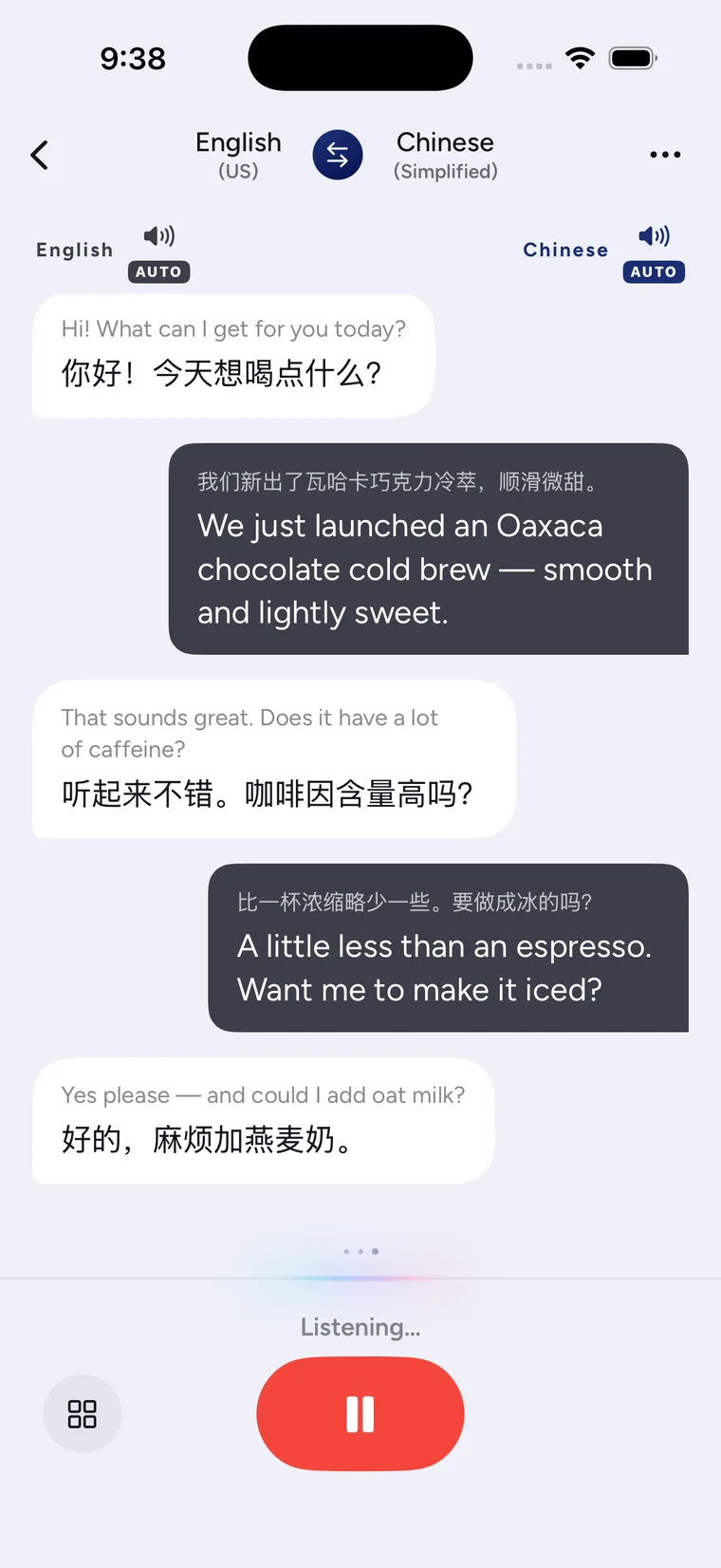
Choose both languages, then test one sentence
To translate a two-way conversation on iPhone, select the languages each person actually speaks in CapVoxa, check internet access and permissions, and try a short sentence in each direction. Confirm that the recognized original is correct before continuing. A small test exposes language or microphone problems more clearly than a long opening speech.
1. Prepare the connection and microphone
Open Conversation and allow microphone and speech permissions when prompted. Position the phone where it can hear both people. A quieter place makes the first test easier; avoid having music, traffic or nearby voices overwhelm the exchange.
If you previously denied access, check CapVoxa's permissions in iPhone Settings. If a request cannot connect, verify internet access before repeatedly sending the same sentence.
2. Check the translation direction
Select your language and the other person's language separately. Do not infer a person's language only from their location. Each person can try a greeting or an introduction. Look at the original and translated text: if recognition is wrong, repeat clearly; if the direction is wrong, change the language selection first.
Names and places may be difficult to recognize. Show them on a booking confirmation, map or written note instead of repeatedly guessing the spelling from speech.
3. Decide whether to listen or read
Enable automatic playback and check the volume when both people need to hear translations. Across a table, face-to-face mode gives each person a half of the screen. For private listening on your side, follow the earbud setup tutorial and test the audio directions.
4. Give each sentence one job
Ask a question, wait for the answer and then follow up. Split “change the time, add a person and check the price” into separate requests. Avoid speaking over each other. If a translation is confusing, rephrase the idea rather than repeating the same sentence more loudly.
5. Confirm details before finishing
Repeat or show dates, times, addresses, amounts and quantities one at a time. Fluent translated text does not guarantee correct recognition or interpretation. For signing documents, emergencies or other high-stakes matters, use appropriate professional assistance.
Quick troubleshooting
- No text appears: check microphone permission, internet access and phone placement.
- Text appears without sound: check automatic playback, volume and the current output device.
- The direction is wrong: recheck both languages and test a sentence each.
- A long sentence loses details: shorten it and confirm each item separately.
Review the live conversation feature before starting. For other features and account questions, see the user guide and support centre.
Sources and product guidance
Get CapVoxa on the App Store
Internet required. Free allowances and subscription benefits follow the app.
Get CapVoxa on the App Store ↗