CapVoxa
How to use earbuds for translation: setup and audio checks
Connect your earbuds, test both translation directions and check volume, network and the active audio route before starting a conversation.
Get CapVoxa on the App Store ↗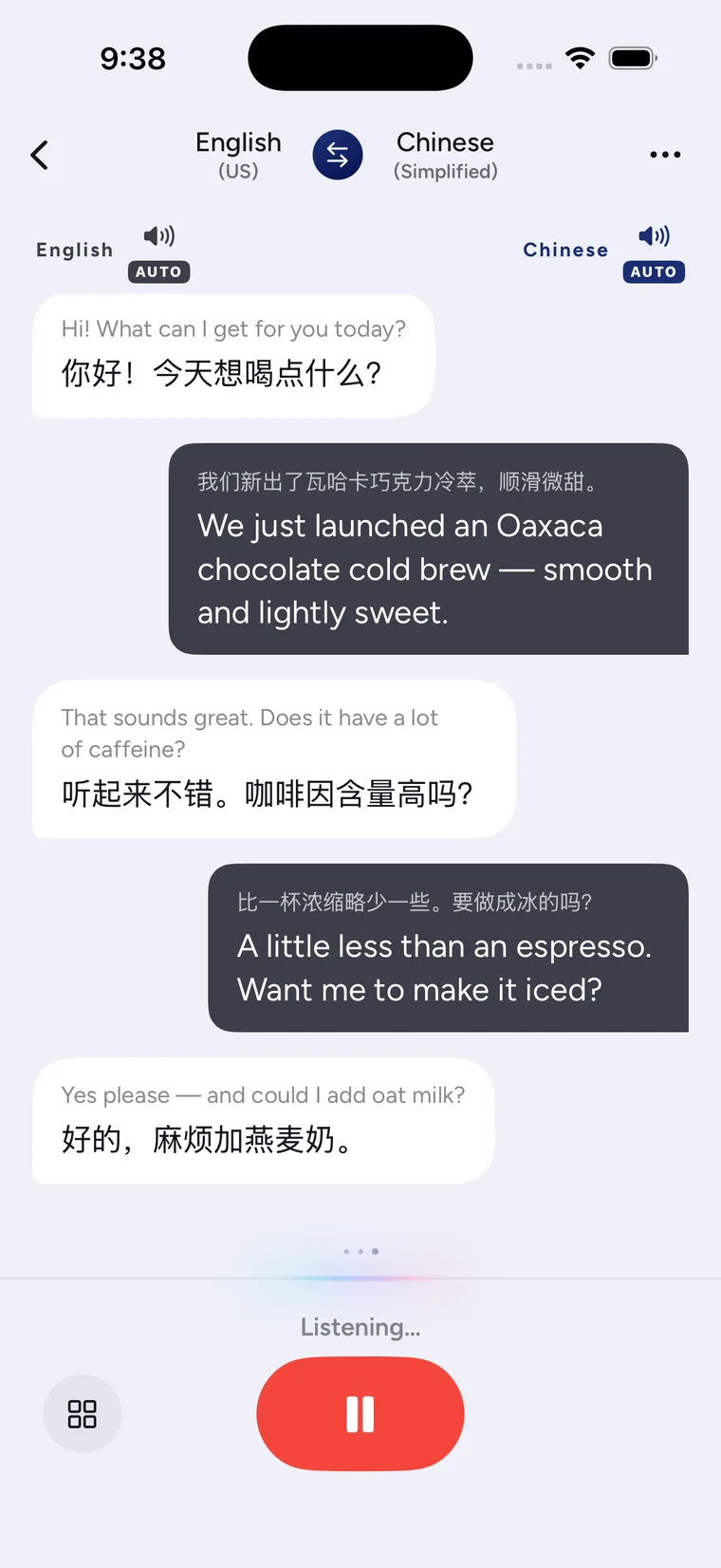
Connect first, then test the sound for both people
An earphone conversation starts with a practical question: where should each person hear the translation? In CapVoxa's earphone conversation mode, you listen through earbuds and the other person hears the phone. A connected headset does not prove that both playback directions are working. Test a short sentence each.
1. Confirm the iPhone connection
Use wired or Bluetooth earbuds connected to your iPhone. Play ordinary audio first to check that the earbuds actually produce sound, then set a comfortable volume. Check battery level for wireless earbuds and the connector for wired equipment.
Seeing a device in the Bluetooth list is not the same as having an active connection. When the connection changes, iOS may change the audio output too.
2. Select languages and earphone conversation
In CapVoxa, select your language and the other person's language, then use earphone conversation mode. Check the internet connection and microphone permission needed for translation. Keep the phone where it can hear the other person instead of putting it in a pocket simply because you are wearing earbuds.
3. Test both directions with short sentences
Ask the other person to say something simple. Confirm that the translation into your language reaches your earbuds. Then say a sentence yourself and confirm that they hear their translation through the phone speaker. Resolve any problem before continuing with the real conversation.
A greeting is a useful test. Avoid starting with a name, an amount or a long request. Take turns so that you can tell which sentence belongs to which output.
4. Check the symptom instead of retrying blindly
- No sound in the earbuds: check ordinary audio playback, volume and the active output device first.
- Original text but no translation: check the network and both language selections.
- Translation on screen without sound: check playback settings, volume and the earbud connection.
- The other person cannot hear the phone: check speaker volume and retest the direction after you speak.
- Poor recognition: move the phone closer to the speaker, avoid overlapping voices or find a quieter place.
5. Retest after a connection change
After a call, earbud disconnection or Bluetooth device change, check both directions again. Headsets, system versions and surroundings can behave differently. One successful test is not a guarantee for every situation.
Translation still needs internet access, and earbuds do not automatically remove all noise captured by the microphone. If speaker playback is unsuitable or the network is unreliable, show written information first. For shared reading, consider face-to-face mode.
See the earbud translation feature page for an overview. If the problem continues, contact support with your device, system version and the affected playback direction. Avoid sending private conversation content that is not needed to investigate the issue.
Sources and product guidance
Get CapVoxa on the App Store
Internet required. Free allowances and subscription benefits follow the app.
Get CapVoxa on the App Store ↗